GUI Integration
Some client extensions can be completely invisible to the user but the majority of extensions are integrated into the JMap Pro GUI. This integration can take many forms. The initGui() method must be used to initialize the graphical interface of an extension.
JMapGuiService class
The JMapGuiService class is used to access the components of the graphical user interface (menus, toolbars, etc.) and to add or remove components. To simplify access to the graphical components, each component has a unique key. This key must be provided when a component is added or removed. For a complete list of available keys, see the section List of GUI components. The JMapGuiFactory class described below provides methods for creating GUI components.
The main methods of the JMapGuiService class are listed below:
Most commonly used methods of the JMapGuiService class |
|
Adds an item to an existing menu by specifying the menu key. |
|
Retrieves a menu using its key. The returned object can then be used to modify the menu. |
|
Adds a toolbar to a specific position in the application interface. |
|
Retrieves a toolbar using its key. The returned object can then be used to modify the toolbar. |
|
Adds a dockable window at a specific position in the application interface. |
|
Allows you to remove a dockable window using its key. |
|
Returns the JMapGuiFactory instance. This class allows you to create GUI components such as buttons and toolbars. |
|
JMapGuiFactory class
The JMapGuiFactory class is used to create buttons, menus and toolbars that are compatible with JMap applications. Methods such as createButton () createMenu () createToolBar (), etc. are called to create the appropriate components.
Integration examples
Adding a button to an existing toolbar
The following code shows how to add a button to an existing toolbar. The toolbar is retrieved using its key. For a complete list of available keys, see section List of GUI components. Note that the action associated with the button is not shown in the example.
|
Adding a toolbar
The following code example shows how to create a toolbar using the JMapGuiFactory class. In this example, the JMapApplicationActionManager class is used to access the buttons' actions. This class can manage single instances of actions. Afterwards, two buttons are created and added to the bar. Finally, the toolbar is added vertically, on the right side of the application. Notice the HashMap of properties that is used to place the toolbar. This principle is used with all components to specify their characteristics.
|
Adding a window
The addDockableComponent() method adds components such as windows to the interface. It takes a HashMap of key-value pairs as a parameter to define the display settings of the new window. All keys and possible values are defined in the method's documentation.
|
Adding a menu
The following code example shows how to create and add a menu to the interface.
|
Adding a menu item to an existing menu
The following code example shows how to add items to existing application menus. Note that a key is used to retrieve existing menus. For a complete list of available keys, see the section List of GUI components.
|
Adding an item to the map pop-up menu
The following code shows how to add a section of items to the map's pop-up menu. This menu appears when the user right-clicks on the map. In addition, the menu item is only active if the user has clicked on at least one element of a map layer. Otherwise, the menu item will be disabled.
|
Adding a section to a layer's settings window
It is possible to add sections to the settings window of a layer, as shown in the image below. To do this, you must implement your own class derived from the abstract class AbstractLayerSettingsCustomPage and implement that class's 3 abstract methods. You must provide a title and icon for your section by passing them to the constructor of the superclass; they will be displayed in the settings window.
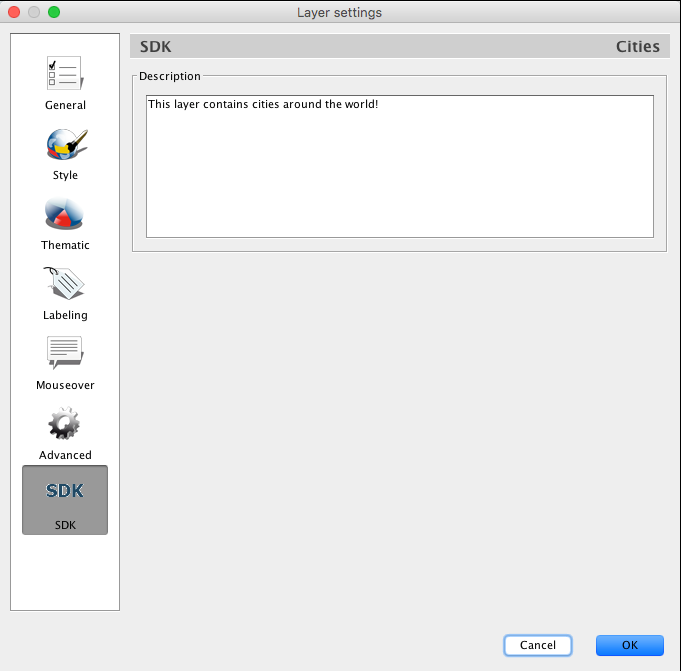
Additional layer setting page created programatically
Abstract methods of the AbstractLayerSettingsCustomPage class |
|
In this method, you must create and return the the instance of JPanel that displays the GUI of the settings in your section. This is the graphical interface that will be displayed. |
|
This method is called when the user clicks on the OK button to confirm the changes and close the window. Your method should return true only if the parameters entered are valid. Otherwise, the window will refuse to close. |
|
This method is called when the user clicks on the OK button to confirm the changes and close the window, and after calling the validateSetting() method. You must apply the parameter changes on the layer. |
|
The getLayer() method of the AbstractLayerSettingsCustomPage class lets you know to which layer the parameters apply. To save your settings section, you must use the method addLayerSettingsCustomPage of the ShowLayerSettingsAction class, as shown in the following source code example.
// Obtain a reference to the ShowLayerSettingsAction instance ShowLayerSettingsAction showLayerSettingsAction = (ShowLayerSettingsAction)appContext.getApplicationActionManager() .getAction(ShowLayerSettingsAction.class);
// Add the custom panel for the Cities layer showLayerSettingsAction.addLayerSettingsCustomPage(SDKLayerSettingsPanel.class.getName(), layerCities.getId());
|
Adding a custom button to the layer manager
You can add buttons associated with a layer in the layer manager. These buttons can be used to trigger custom actions that are specific to a layer. The buttons are added in different ways in the hierarchical section and list section.
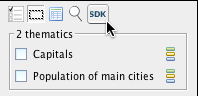
Example of custom button added to a layer
The following source code example shows how to add a button to the Cities layer.
// Obtain layer instance from layer manager Layer layerCities = appContext.getViewManager().getLayerManager().getLayer("Cities");
JMapGuiService guiService = appContext.getApplication().getGuiService(); JMapGuiFactory guiFactory = guiService.getGuiFactory();
AbstractButton abstractButton = guiFactory.createButton(new ButtonAction());
// Add the button to the 'More options' of the LayerTreeBar (hierarchy) for the layer Cities guiService.getLayerTreeBar().addCustomButton(abstractButton, layerCities.getId());
// Add the button to the LayerPanel of the LayerBar (list) for the layer Cities LayerPanel layerPanel = guiService.getLayerBar().getLayerPanel(layerCities.getId()); Button button = new Button(new ButtonAction(), false, new Dimension(18, 18)); layerPanel.addCustomButton(button);
|