Tracking Mobile Units
You can track the movement of one or more mobile units, which may belong to the same or to different layers managed by Tracking. These units are identified in the map interface using a circle surrounding the unit's symbol. When the units move, the map is modified to automatically display the zone in which they are located.
Tracking a mobile unit
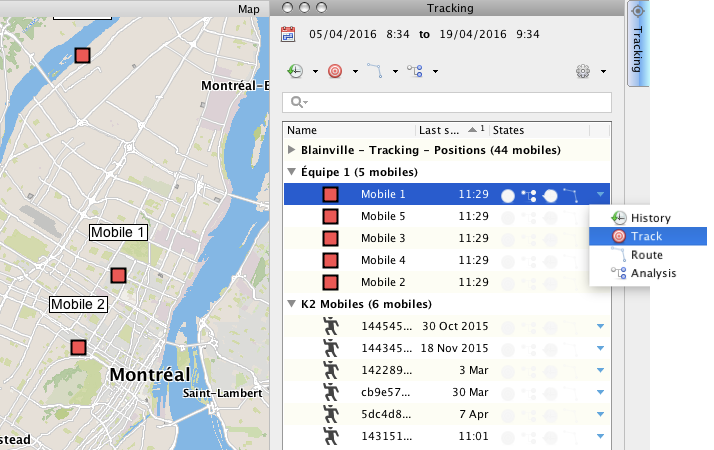
1.Click on the blue arrow  to open the functions menu of the mobile unit you wish to track. The drop-down menu appears.
2.Click on Track  to enable the function. The symbol is displayed in the States column, and the mobile unit is surrounded by a red circle in the map interface. The interface moves in order to display the tracked mobile unit at all times.
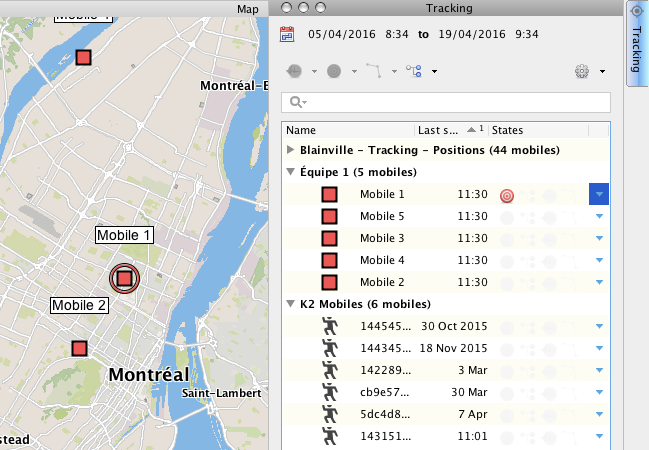
3.Click on Track again to disable the function.
Using this method, you can enable the Track function for several mobile units belonging to the same layer or to different layers, using the functions menu of each unit.
Tracking several mobile units
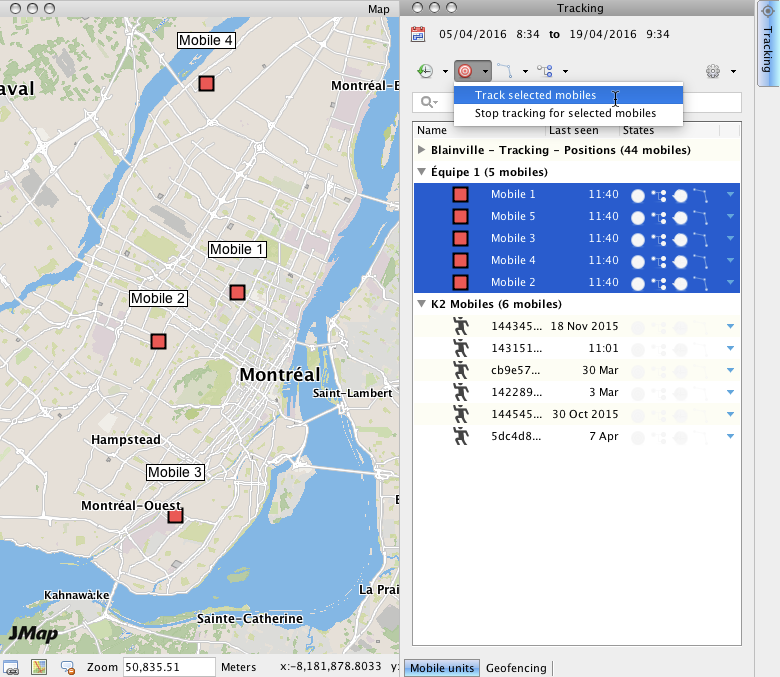
1.Click on the mobile unit to select it. By pressing and holding down the CTRL key of the keyboard, you can select several mobile units. The Tracking window's function buttons are enabled.
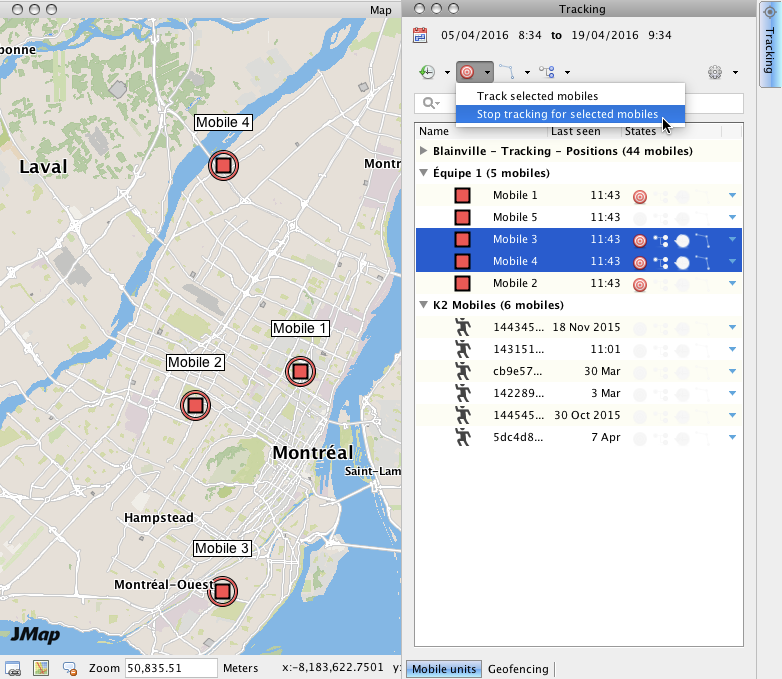
2.Click on Track . A menu appears, displaying the available options.
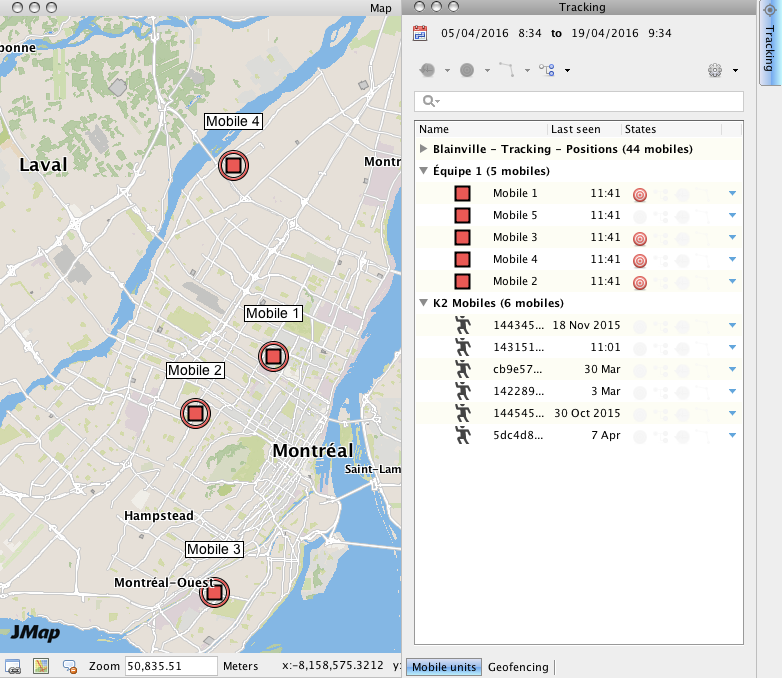
3.Click on Track selected mobiles. The symbol displays in the States column of each mobile unit selected, and in the map interface, they are surrounded by a red circle. The interface moves in order to display the tracked mobile units at all times. With the exception of the Analysis wizard  button, all other function buttons in the Tracking window are disabled.
4.Select the mobile units you no longer want to track.
5.Click on Track . A menu appears, displaying available options.
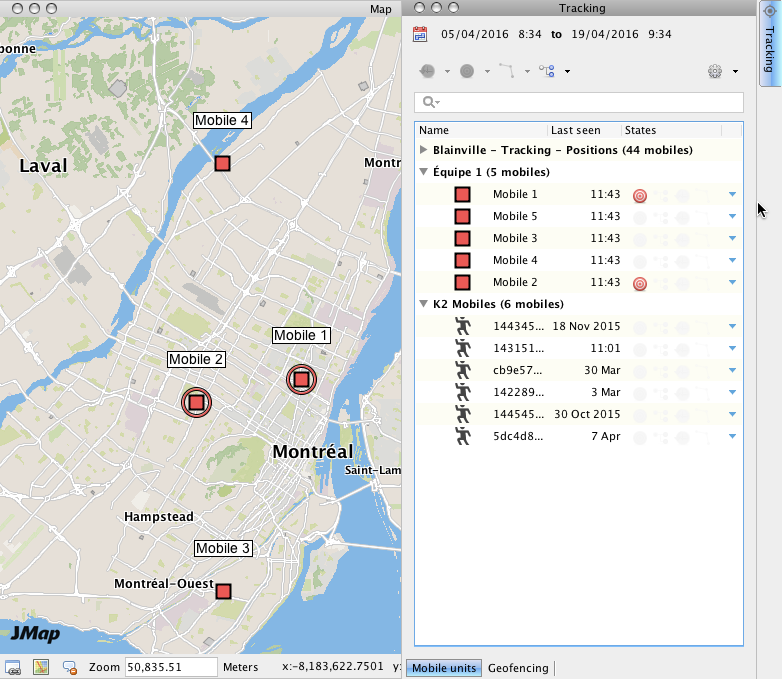
6.Click on Stop tracking for selected mobiles. The symbol displayed in the States column for the selected units will be disabled. In the map interface, the units are no longer surrounded by a red circle. The function buttons in the Tracking window are disabled. If some mobile units are still tracked, the Analysis wizard button remains active.